Works with Google CalendarSpeak or type
Say it once. It's on your Google Calendar.No forms. No date pickers.
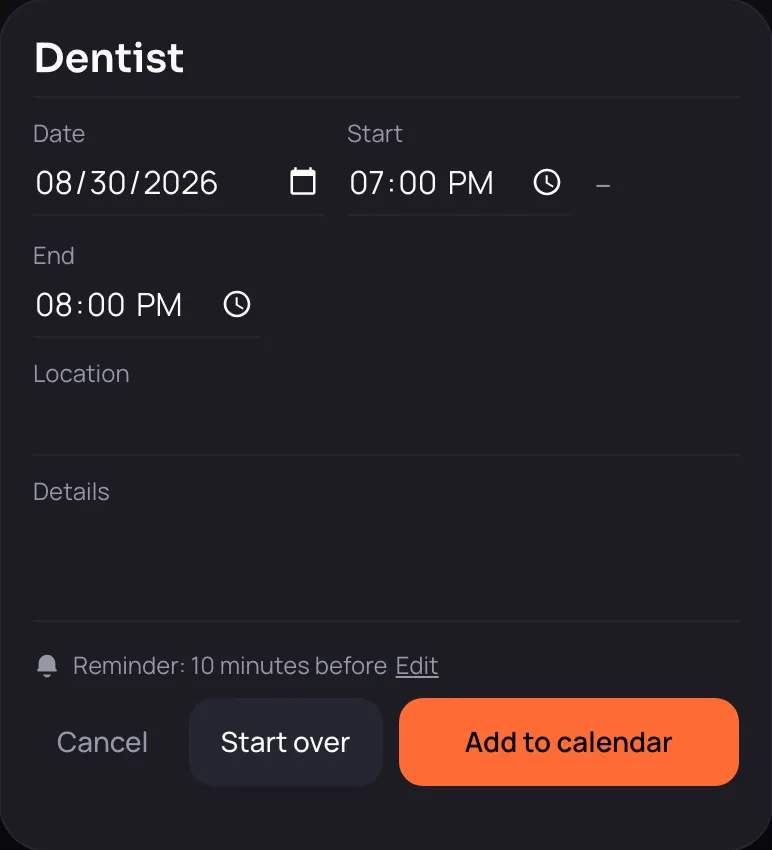
“Dentist tomorrow at 7pm”
Your first 5 events are free.
No card required · $2.99/month after that
Things you could say
How it works4 steps
From one tap to your calendar.
From the moment you speak to the moment it's in Google Calendar — with one stop along the way where you check it before it's written.
Open
One tap from your home screen
Open the app and there's one mic button in the middle. No menus. No list of events.
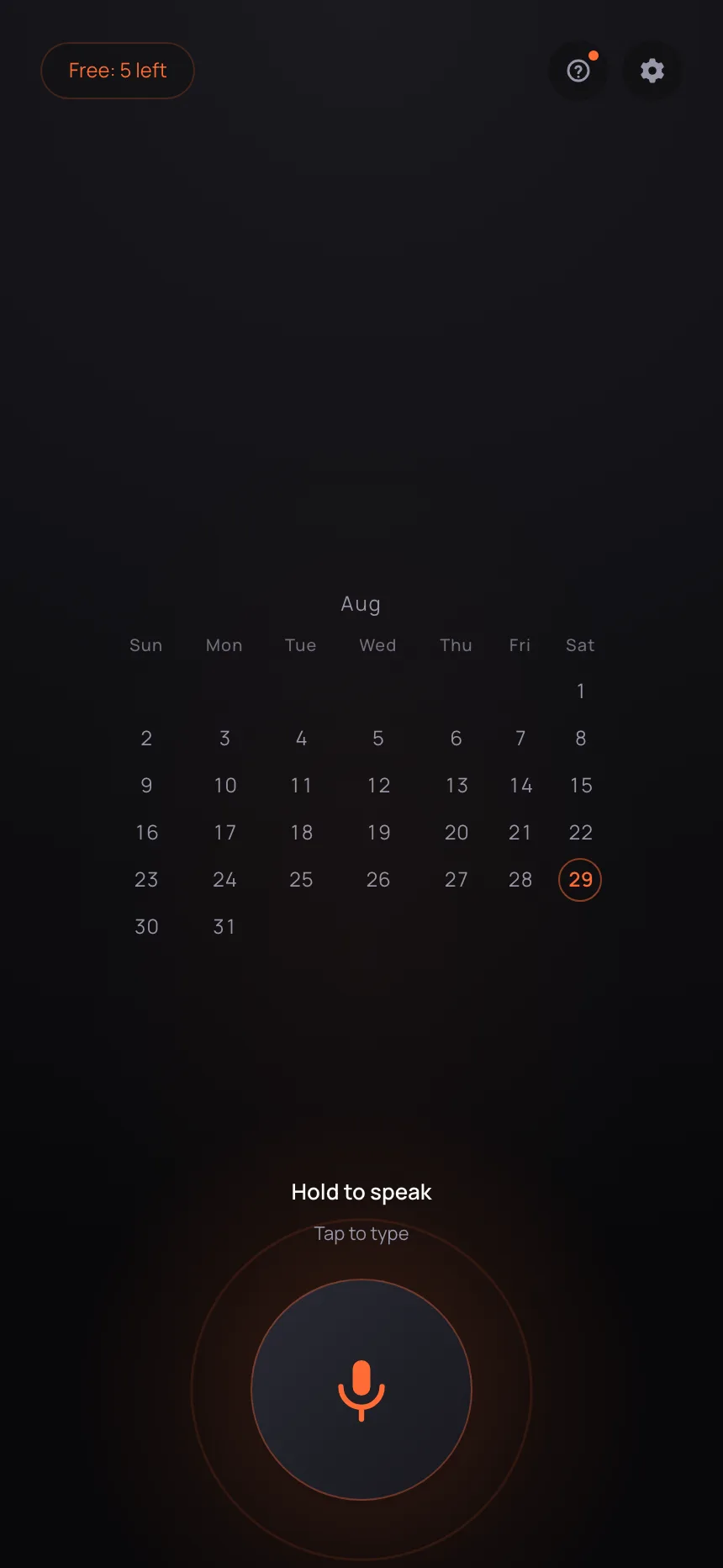
Say it
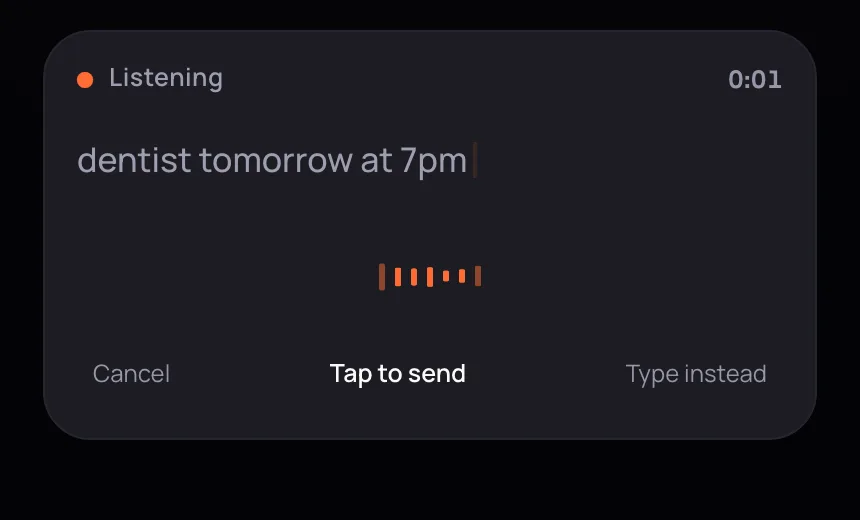
“Dentist tomorrow at 7pm”
No date or time pickers. Say it the way you normally would, or type the same sentence.
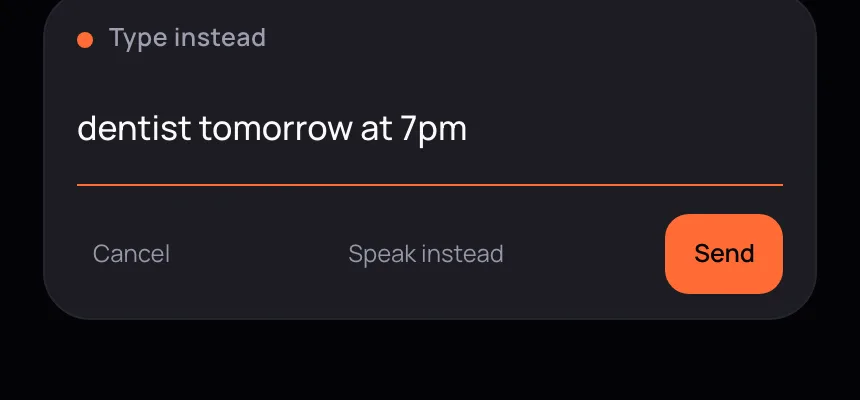
Check
It always stops to check first
You see the date, time, and title it understood. If something's off, fix it right there. Nothing is written until you confirm.
It's on your calendar
Added to your Google Calendar
It goes into your own Google Calendar. Reminders and later changes happen in the calendar you already use.
InputVoice or text
Can't talk right now? Type it.
In a meeting or on the train, you can do the same thing without saying a word. The voice screen always has “Type instead,” and you can type from there.
What you type is read the same way, and you still get the confirmation screen before it's added. An event you typed is no different from one you spoke.
There will always be places where you can't talk: mid-meeting, on the train, in front of people. The app doesn't stop working just because you're in one of them.

When you'd use itThe moment you remember
Made for everywhere but your desk.
Most plans get made away from your desk. By the time you tell yourself you'll add it later, it's already half forgotten.
Hallway
Right after the meeting
You settled on the next meeting before you even got back to your seat. Say one line as you walk, check what comes up, and you're done.

Parking lot
Once you've parked
Engine off, key out. One sentence before you get out is enough, so there's no need to touch it while your hands are on the wheel.

What we don't store3 facts
Your voice and your event details aren't stored.
Since this app uses your microphone, here's how that works up front. What you say passes through memory while it's processed, and isn't kept in our database.
- Audio recordings
Not stored
Your audio only passes through memory and is discarded once it's been processed. It isn't written to a file or to storage.
- Transcripts
Not stored
We don't keep the text of what you said. There's no screen to read it back, and no storage behind one.
- Event titles, locations, and descriptions
Not stored
The details of your events live in your Google Calendar. We don't keep a copy.
What we do keep is the email address you sign in with, your billing status, and how many events you've added. The details are in our Privacy Policy.
PricingFirst 5 free
Try it first. Decide later.
The free part is counted in uses, not days. Weeks you don't use it don't count against you.
- Free uses
5 events
A use only counts when an event actually lands on your calendar. Rephrasing, or canceling at the confirm step, doesn't count.
- To start
No card required
You start by signing in with Google. No payment details up front.
- After that
$2.99/month
To keep going, it's $2.99/month. If you stop, the events you've added stay in your Google Calendar.
Is it for you?Worth saying up front
For people who live in Google Calendar.
Put the other way: if you don't use Google Calendar, this isn't for you. The app only adds events. It has no screen for looking at them.
A good fit if
- You open Google Calendar every day
- You already use “Sign in with Google”
- You add a lot of events (work, school, juggling several things)
Not a fit if
- You don't use Google Calendar
- You want to see your schedule or a calendar view inside this app
- You want to edit events or set up repeating ones here
Reading your events and getting reminders is Google Calendar's job. If you're not in the habit of opening it, you won't have a way to notice an event was added.
Say it once. It's on your Google Calendar.
Your first 5 events are free.
No card required · $2.99/month after that